

HoloLens App > Hologram Interactions
Inspect and Interact with your Hologram
After loading the hologram of your patient, the Lumi application can be used to inspect the hologram. Use your hands to position, rotate or scale your hologram. When the hologram is placed at a certain position in the room, walk around and inspect it from different sides to experience the power of 3D visualization.
-
Note: the hologram can always be rescaled to its original size by selecting Hologram > More Options > Positioning tab > Reset Scale.
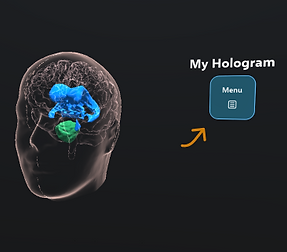
Press the 'Show' button that floats at the right side of the hologram to open the menu. In the menu, you can quickly turn components 'On' or 'Off'. The 3D surface models can also be set to 'Glass' to create a transparent view.
Show button
On/Glass/Off Visualization

By selecting the component itself, several features will be activated and a submenu will appear right of the selected component.
-
Selecting the 'Hologram' menu shows all the options that will apply on all components
-
Selecting the 'Scan' component allows the user to scroll through the slices of the original scan and lets the user add the Free Slice to the hologram
-
Note: To move the slices, make sure to select 'Scan' in the hologram menu and grab the slice between your index finger and thumb
-
-
Selecting a 3D component (e.g. skin, tumor etc.) can be used to adjust the transparency or visualization parameters for the selected component
Hologram submenu

Scan submenu

3D component submenu

Hologram Interactions
This video demonstrates:
-
The basic hologram interactions
-
How you can show and hide components
-
How to move objects very precise